Instagram Saved Posts: How to Find, Organize, and Use Them
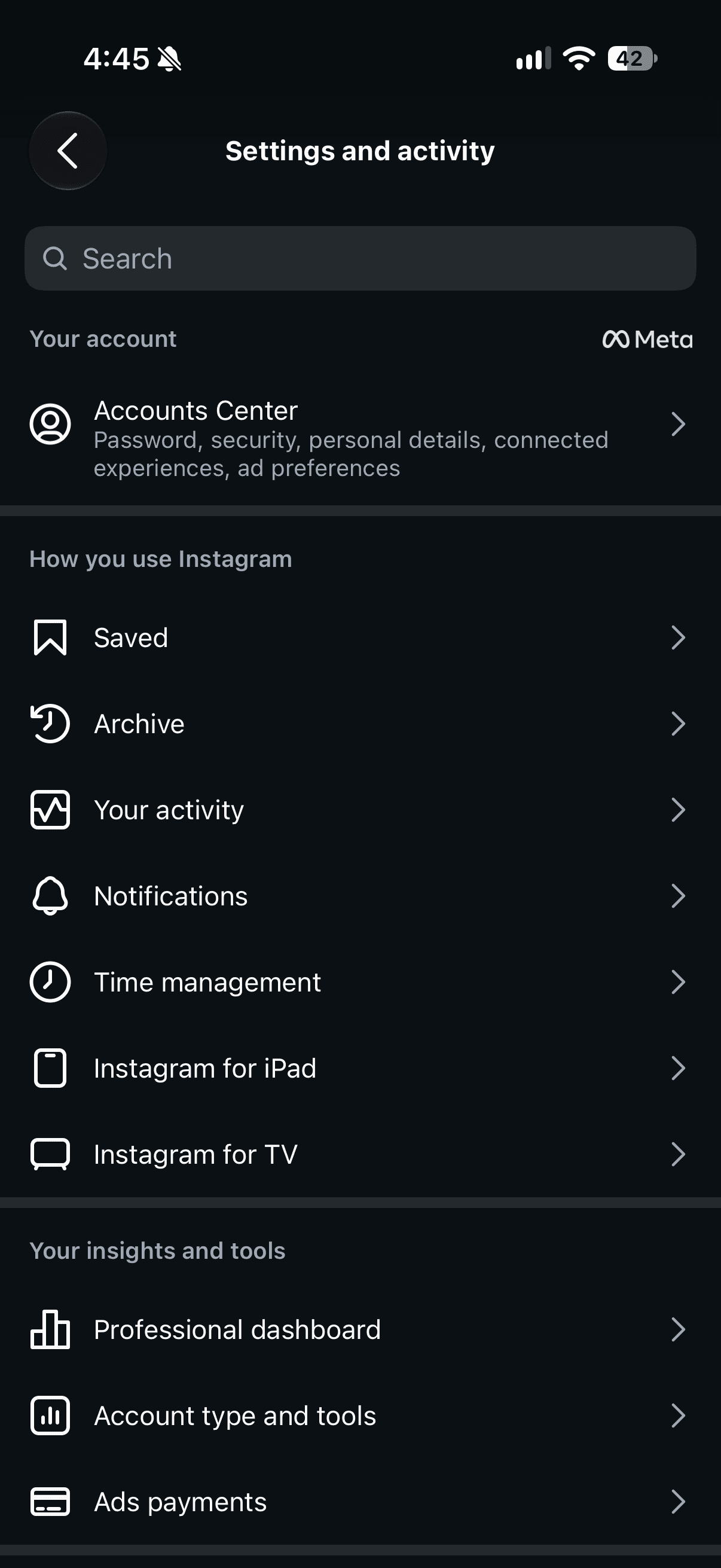
To find your Instagram saved posts, open your profile, open the menu, and select Saved. You’ll find your bookmarked posts there.
How to organize saved Instagram posts & remember to do them
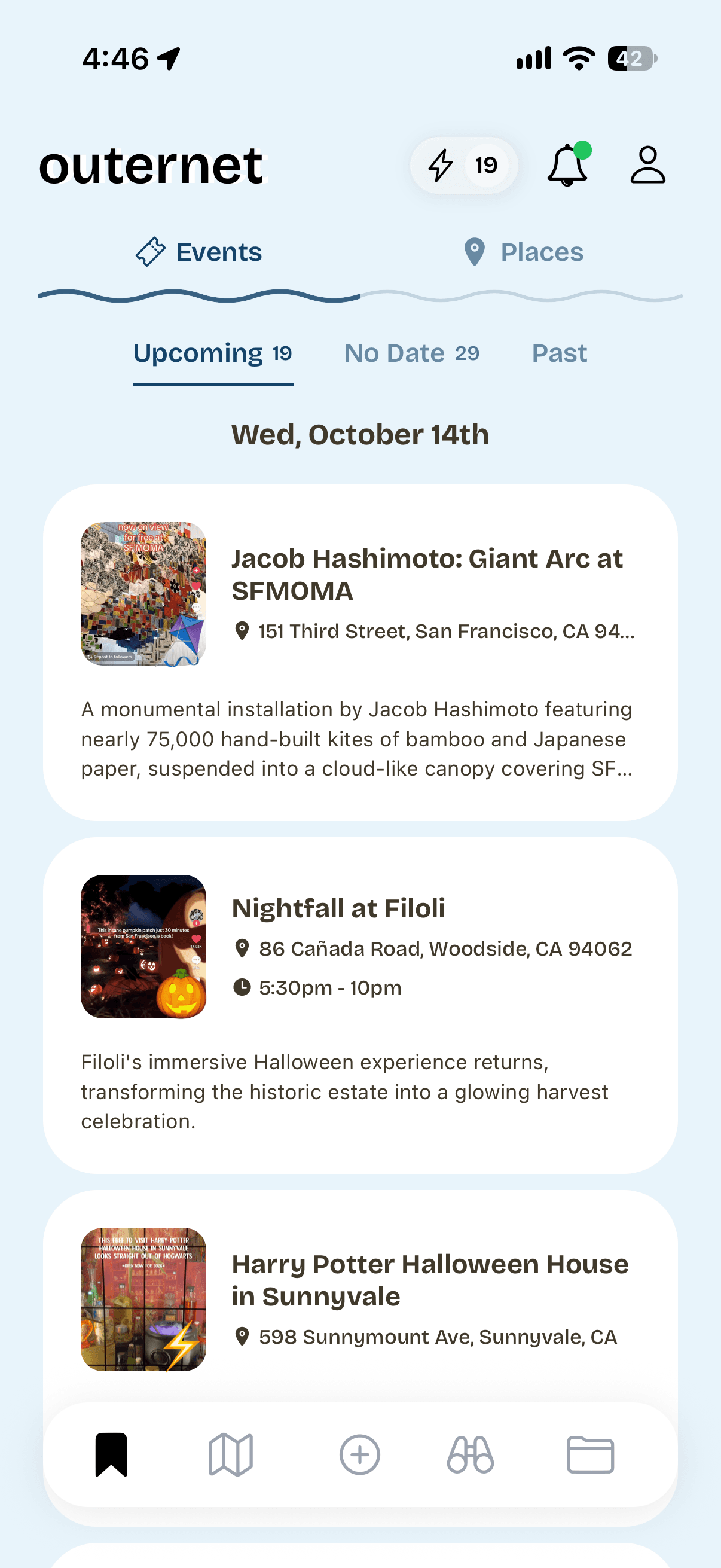
1. Tap the share button and send them into Outernet.
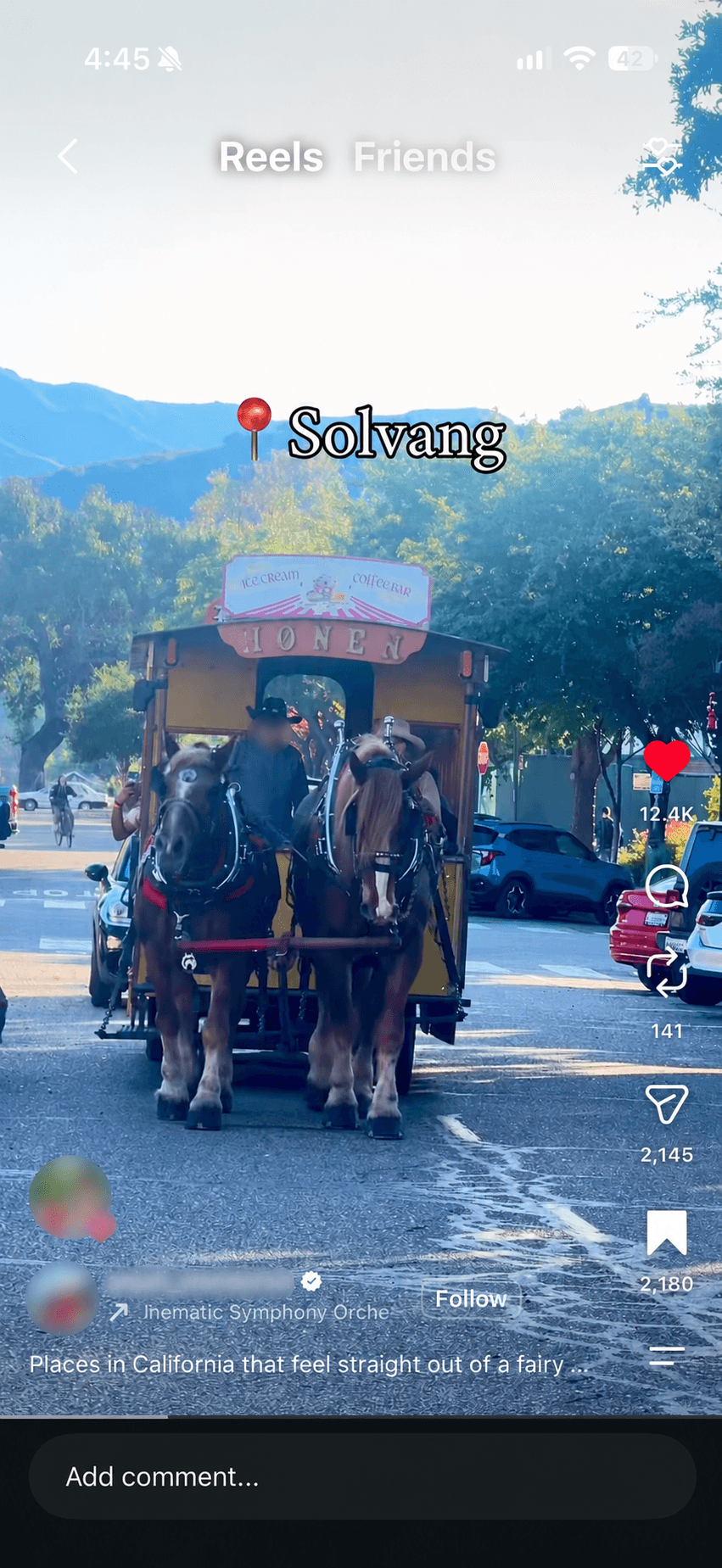
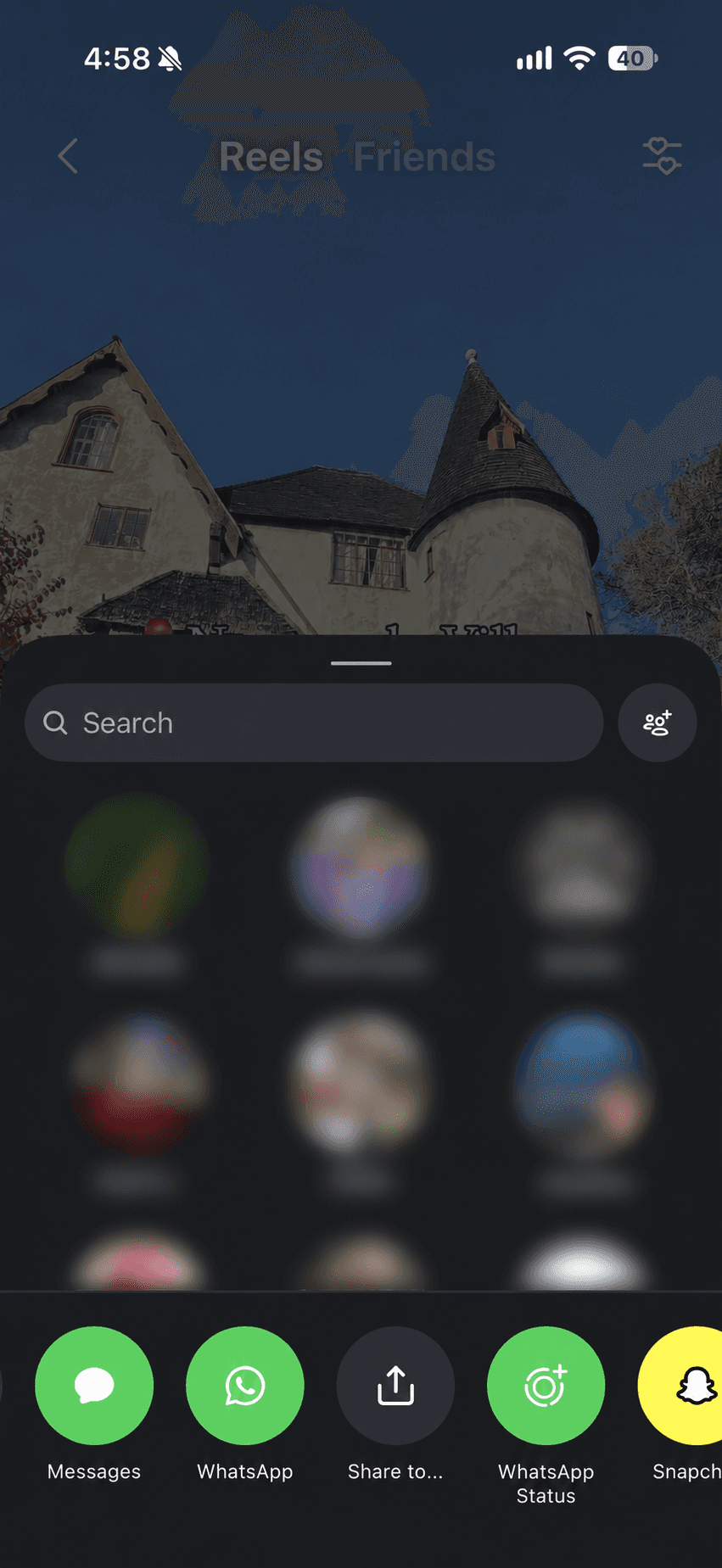
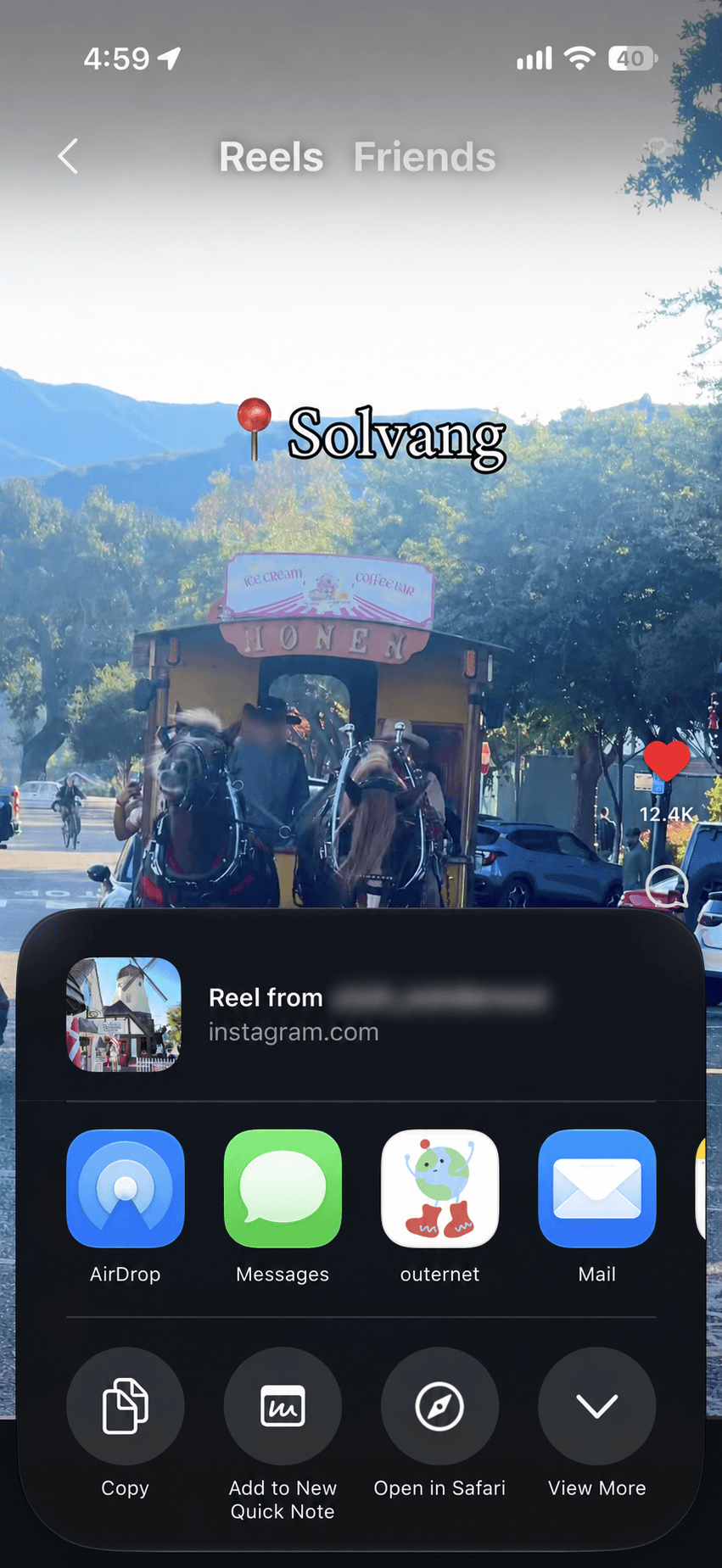
2. Outernet will ingest the posts, figure out the places and events referenced, and turn them into plans you can go on.
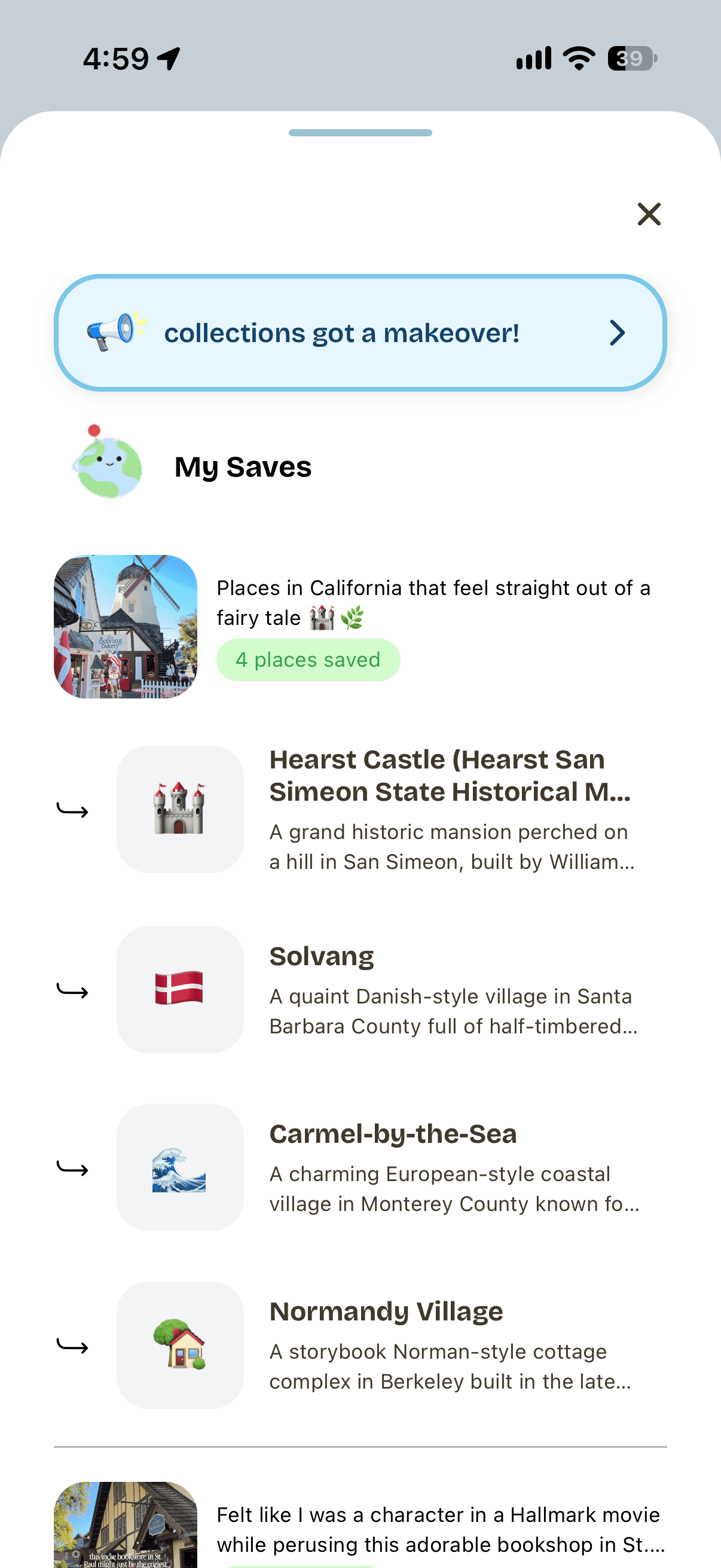
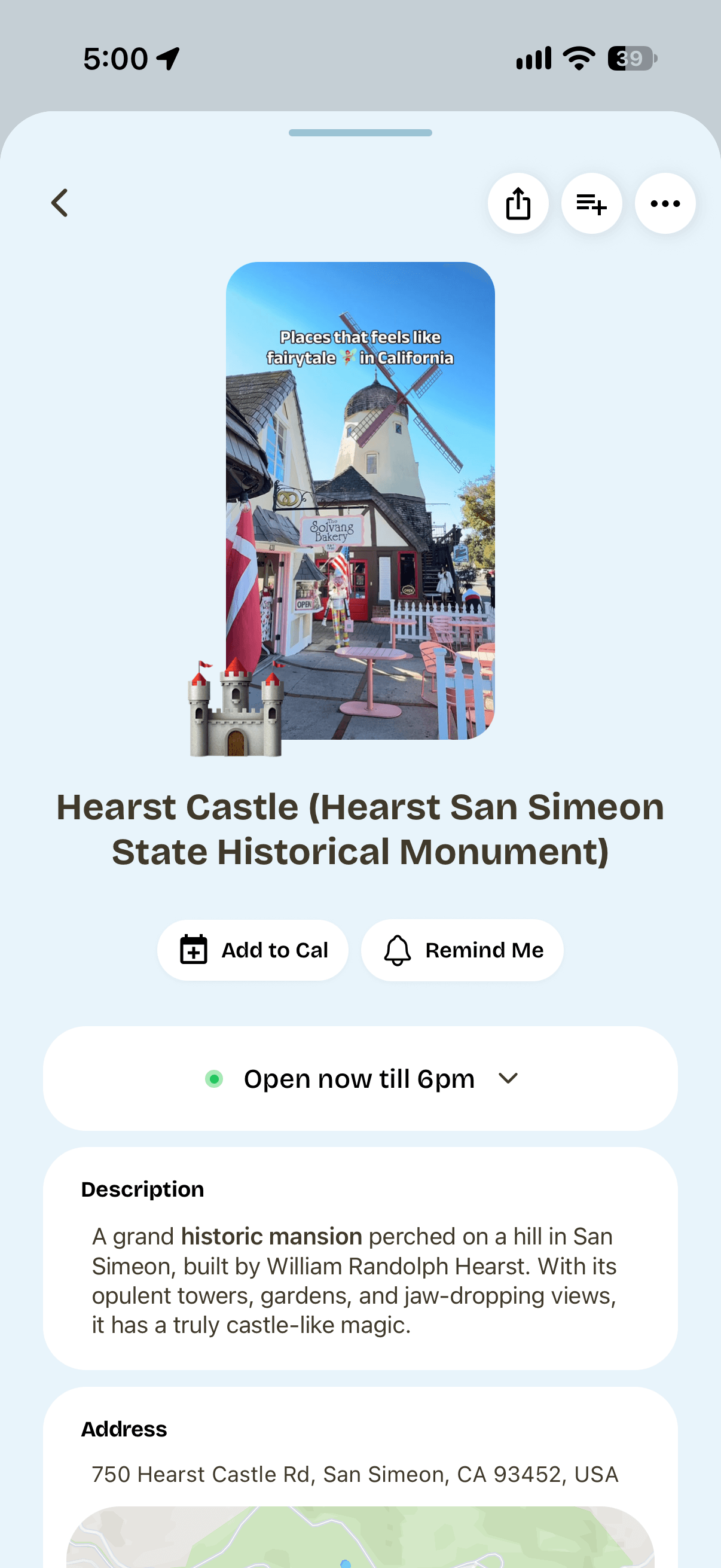
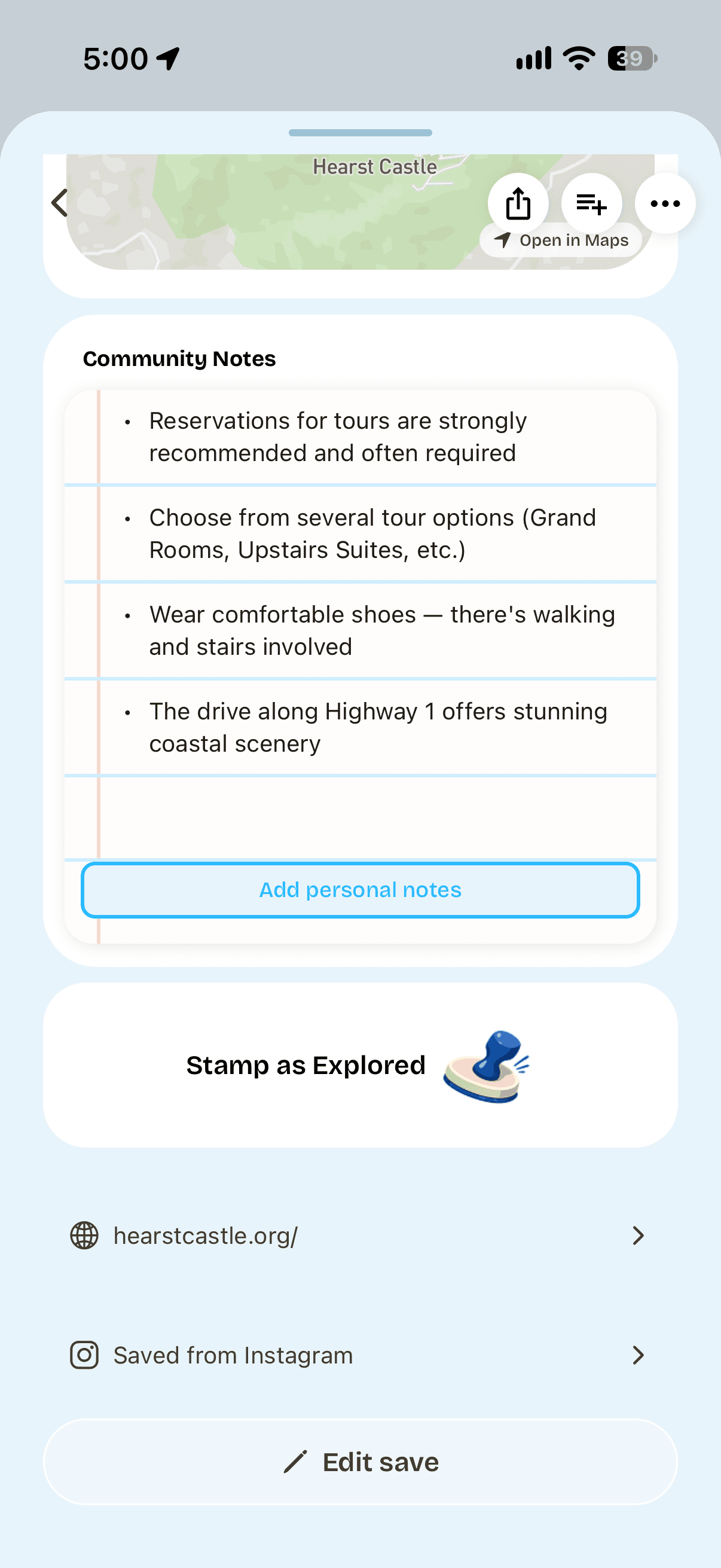
3. All the places will be pinned on a map, and the events organized in a calendar.
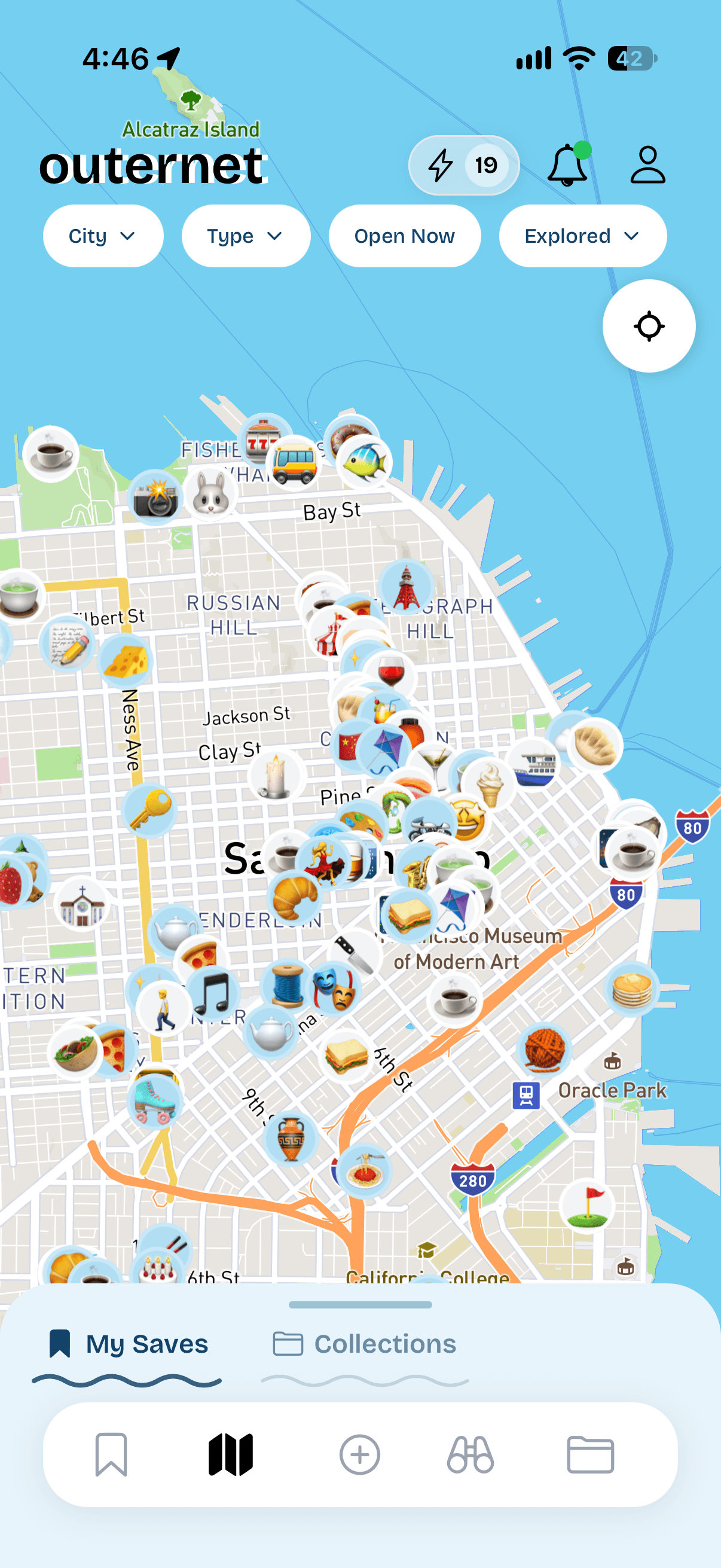
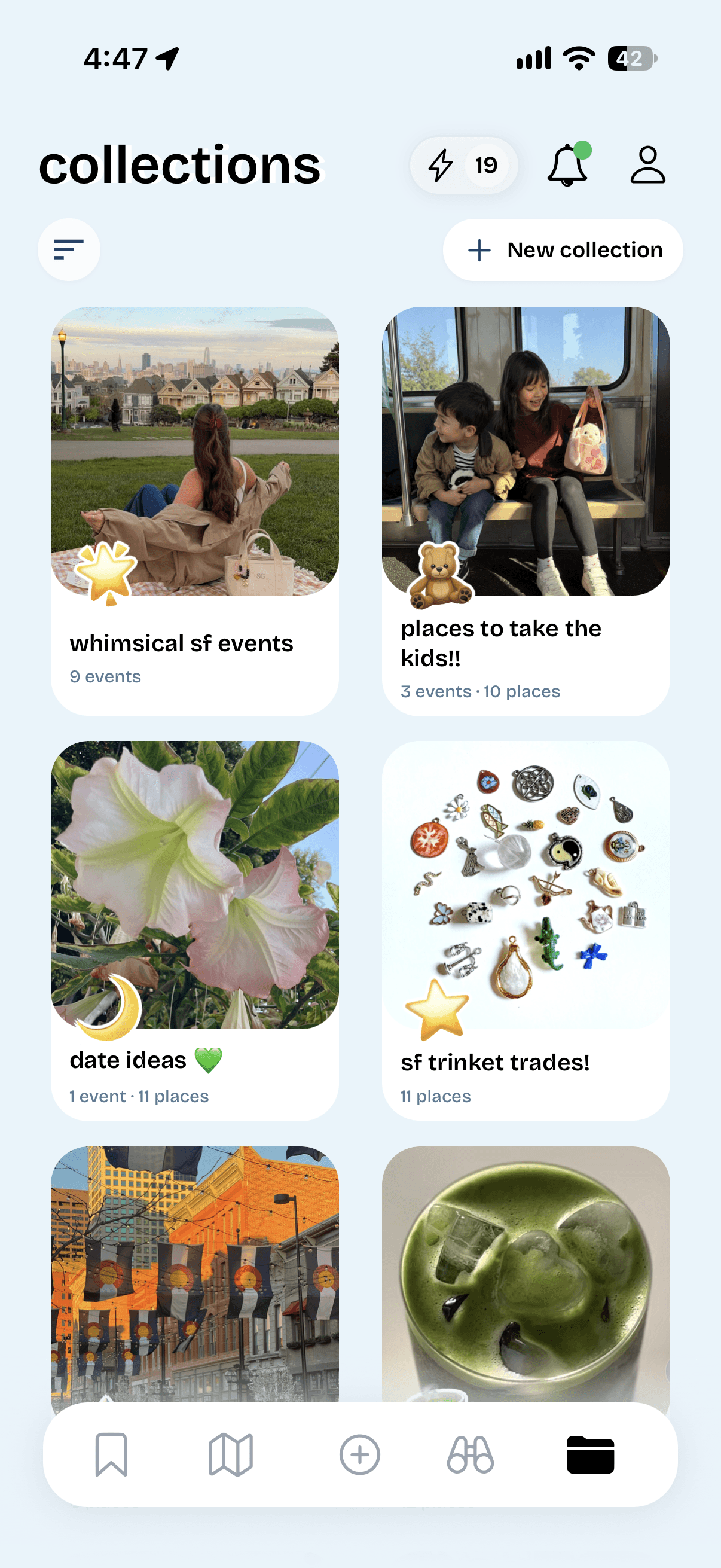
Create collections in Outernet to organize your adventures. Try:
- Date night: restaurants and activities for two.
- Tokyo trip: places for your next travel destination.
- This month: events happening that you're ready to make time for.
How to share a collection with friends
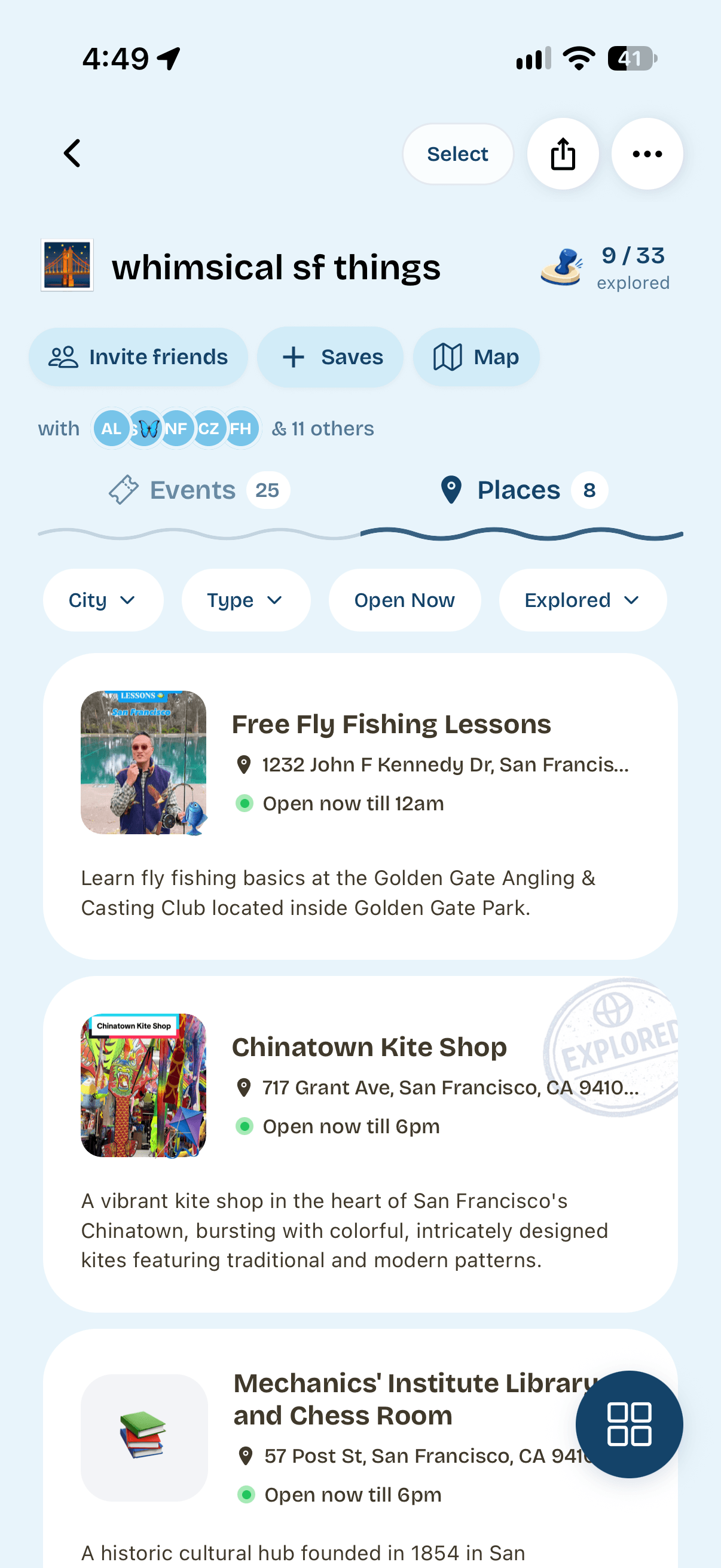
Within an Outernet collection, tap "invite friends" to share the link with friends or a partner. Everyone invited can add to the collection, so it's great for planning trips, date nights, or weekend adventures.
Next time you’re wondering what to do, start with the places you’ve already saved!